

🛡️ How to Check for Malware or Viruses on Your Computer
Malware and viruses are hidden cyber threats that can silently damage your system, slow down performance, steal sensitive data, and cause permanent file corruption. Many users only realize they are infected after serious damage has already been done. Regular malware checks and proper system security practices are essential for keeping your computer safe, fast, and reliable.
⚠️ What is Malware?
Malware (short for malicious software) is any program designed to infiltrate, damage, or exploit a computer system without the user's consent. It often enters through unsafe downloads, phishing emails, infected websites, or cracked software.
Once inside, malware can operate silently in the background, making it difficult to detect without proper tools.
Types of Malware
- Virus: Attaches itself to files and spreads when executed, damaging system data.
- Spyware: Secretly monitors user activity and collects sensitive information like passwords.
- Ransomware: Encrypts files and demands payment for recovery.
- Trojans: Disguised as legitimate software but performs malicious actions.
- Adware: Displays unwanted ads and redirects browser activity.
🔍 Signs Your Computer May Be Infected
Malware infections often show subtle but consistent symptoms. If your system behaves unusually, it may already be compromised.
- Noticeable slowdown in system performance even with no heavy usage
- Frequent pop-up advertisements or browser redirects
- Unknown software or applications installed automatically
- Browser homepage or search engine changes without permission
- High CPU, RAM, or disk usage in Task Manager
- Frequent system crashes, freezes, or unexpected restarts
- Missing, corrupted, or inaccessible files
🧰 Step-by-Step: How to Check for Malware or Viruses
1. Run Windows Security Scan
Windows includes a built-in antivirus tool called Windows Security that provides real-time protection against threats.
Steps:
- Open Start Menu → Settings
- Go to Privacy & Security
- Click Windows Security
- Select Virus & Threat Protection
- Run a Quick Scan or Full Scan
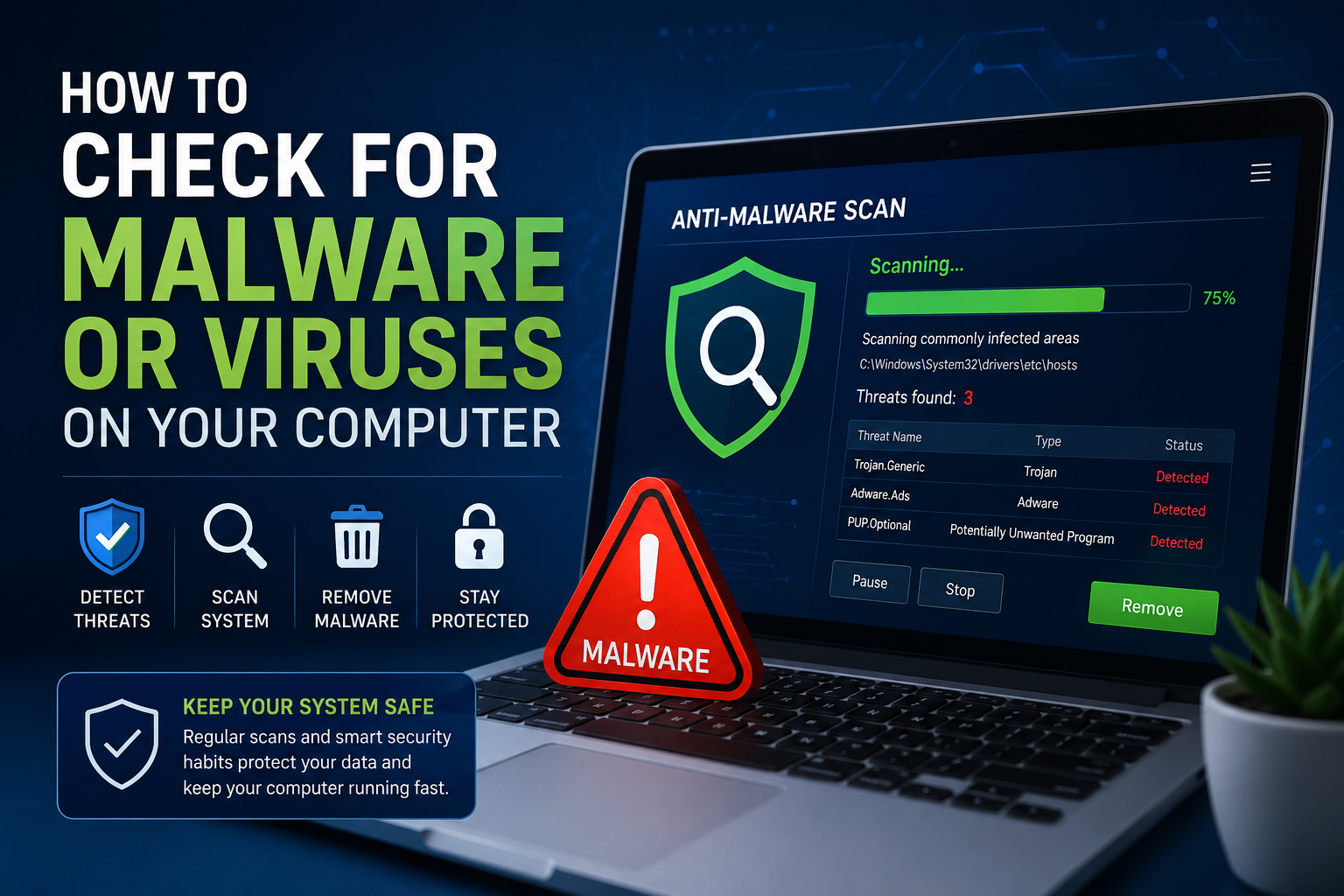
A Quick Scan checks commonly infected areas, while a Full Scan performs a deep system analysis including hidden files and background processes.
2. Perform a Deep Full System Scan
A full system scan is recommended when your computer shows suspicious behavior. It checks all files, installed programs, system memory, and startup services.
This process may take time, but it provides a more accurate detection of hidden malware or advanced threats.
3. Use Trusted Antivirus Software
Third-party antivirus tools provide advanced protection features such as real-time monitoring, firewall protection, and ransomware detection.
Recommended Antivirus Tools:
- Avast Antivirus
- Kaspersky Security
- Bitdefender Antivirus
- Norton Security
Ensure your antivirus software is always updated to detect the latest threats.
4. Check Installed Programs for Suspicious Apps
Some malware installs itself as hidden applications. Regularly reviewing installed software helps identify unknown programs.
- Open Control Panel
- Select Programs and Features
- Look for unfamiliar applications
- Uninstall suspicious or unused software
5. Monitor Startup Programs
Malware often runs automatically when the system starts, making it harder to detect.
- Open Task Manager (Ctrl + Shift + Esc)
- Go to Startup tab
- Disable unknown or unnecessary entries
6. Check Browser Extensions and Settings
Browser-based malware can modify your homepage, inject ads, or track your activity.
- Open browser settings
- Review installed extensions
- Remove unknown or suspicious add-ons
- Reset browser settings if needed
🔐 Best Practices to Prevent Malware Infection
Prevention is always more effective than removal. Following strong security habits reduces the risk of infection significantly.
- Keep Windows, drivers, and software updated regularly
- Avoid downloading cracked or pirated software
- Do not open unknown email attachments or links
- Use licensed antivirus with real-time protection
- Enable firewall for network security
- Download software only from official websites
- Use strong passwords and enable two-factor authentication
🧑💻 When to Seek Professional IT Support
In severe cases, malware can disable antivirus tools or deeply embed itself into system files. When this happens, manual removal may not be safe or effective.
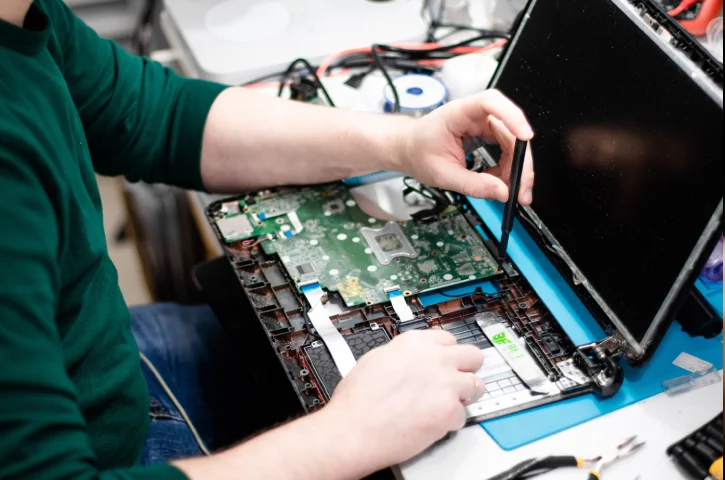
Professional IT services can perform advanced virus removal, system recovery, and security hardening to restore full system performance.
Businesses and individuals in the UAE often rely on expert support like Triforce Computers for secure malware cleanup and system optimization.
✅ Conclusion
Malware threats are constantly evolving, but with regular system scans, safe browsing habits, and updated security tools, you can significantly reduce the risk of infection. A well-maintained system not only performs better but also protects your personal and business data.